WordPress Migration: What Actually Happens When You Switch Hosts
Switching WordPress hosts means copying your files and database to the new host, testing that copy, then repointing DNS — not touching your live site until you're ready. Here's what happens at each step and where it actually goes wrong, checked against current provider migration processes on 2026-08-22.
This article may contain affiliate links. We may earn a commission if you make a purchase, at no extra cost to you.
The 30-second answer
CHOICEA'S PICK
A WordPress migration copies your site's files and database to the new host, lets you test that copy on a temporary URL, then repoints your domain's DNS to the new host — your original site keeps running unchanged the whole time, so downtime is avoidable if you test before you cut over, not after.
What to check next: See the full breakdown above
If you're considering switching WordPress hosts, the actual mechanics matter more than most guides let on — most of what's written about migration comes from the host you'd be moving to, which has a reason to make the process sound simpler and lower-risk than it always is. This is a neutral walkthrough of what actually happens, checked against how current migration tooling and provider processes work as of 2026-08-22, without pushing you toward any specific destination.
What "Migrating" Actually Means
A WordPress site is really three things: the files (themes, plugins, uploaded media, WordPress core itself), the database (every post, page, setting, and most plugin configuration), and the domain pointing at wherever those two things currently live. Migrating means copying the first two to a new server and then changing where the domain points. That's it structurally — the complexity is entirely in doing that copy accurately and testing it before your visitors ever see the new location.
The Three Phases: Copy, Test, Cut Over
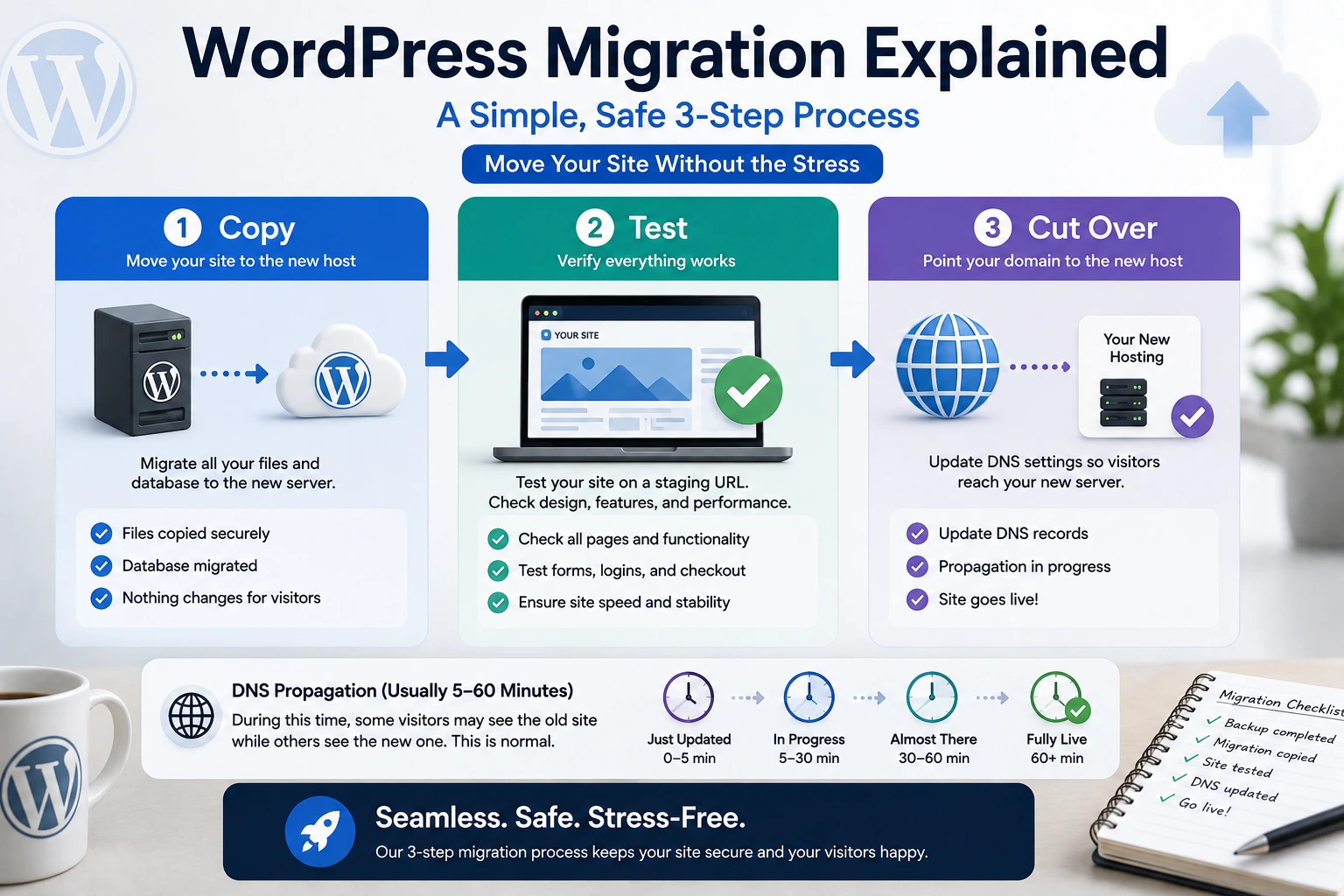
Copy. Your files get transferred (via a plugin, a manual FTP/SFTP transfer, or a host's own migration tool) to the new server, and your database gets exported and re-imported there. This step doesn't touch your live site at all — it's writing to a new location, not moving the old one.
Test. The copy on the new host gets a temporary URL (a staging subdomain, a raw IP address, or a local hosts file override) so you can check that pages load, forms submit, images display, and nothing broke in the transfer — before any visitor sees it. This is the step that's easiest to skip under time pressure and the one most worth not skipping.
Cut over. Once you've verified the copy works, you update your domain's DNS records to point at the new host instead of the old one. DNS changes aren't instant — propagation can take anywhere from a few minutes to (in slower cases) up to 48 hours, during which some visitors may still briefly hit the old server. Your original site stays fully live and unchanged through the entire copy-and-test process; only the cut-over step actually redirects traffic, and it's the one step you control the timing of.
What Can Go Wrong (And When)
Almost every real migration problem happens in one of two places:
- During the copy: hardcoded URLs in the database (common with page builders and some themes) that still point at the old domain or an old file path; file permission mismatches on the new server; a plugin or theme that's incompatible with the new host's PHP version or server configuration.
- During cut-over: forgetting that email (MX records) is a separate DNS entry from the website (A/CNAME records) — moving hosts can silently break inbound email if you're not specifically checking for it; SSL certificate not yet issued on the new host when DNS switches, causing a brief certificate warning.
Both categories are almost entirely avoidable by testing thoroughly during the "test" phase above, before touching DNS — which is exactly the step that gets rushed when a migration is framed as fast and effortless.
Plugin-Based vs Manual Migration
Most current migrations use one of two approaches. Plugin-based (tools like Duplicator or a host's own migration plugin) automates the copy step — you install it on the old site, it packages files and database together, and a matching tool on the new host unpacks it. This is faster and lower-risk for most site owners, since the tool handles path/URL rewriting automatically. Manual migration (FTP for files, phpMyAdmin or a similar tool for the database, hand-editing the site URL in the database afterward) gives more control and is sometimes necessary for unusual server configurations or very large sites, but requires comfort with server administration and is where hardcoded-URL and permission problems are most likely to surface unnoticed.
Several managed hosts now offer migration as a service rather than a tool: Cloudways, for instance, provides free migration handled by its own team for WordPress and WooCommerce sites (non-WordPress applications are a paid add-on), and separately offers a self-service WordPress Migrator Plugin if you'd rather run it yourself. Kinsta similarly offers unlimited free migrations from any current host, typically completed within a day, with its team handling the copy step and notifying you when the copy is ready to test — you still do the DNS cut-over yourself once you've verified it. Neither of these is an endorsement of either provider specifically — they're cited because they're real, current examples of how "migration as a service" actually works mechanically, which is directly relevant to understanding the process regardless of which host you end up choosing.
Should You Migrate At All? A Cost-Benefit Check
This is the question most migration guides skip entirely, because a guide published by a hosting provider has an obvious reason to assume you've already decided to move to them specifically. Worth checking honestly before you start:
- What's actually driving the move? "My current host is slow" is sometimes a hosting problem and sometimes a plugin, theme, or unoptimized-image problem that would follow you to a new host unchanged. If you haven't ruled out the second case, migrating won't fix it.
- What's the migration actually going to cost you — not just money, but the hours of testing, the DNS propagation window where things can look inconsistent, and the real (if small) risk of something breaking that you catch late? For a site where uptime and correctness matter (an active business site, anything with real traffic), that cost is real and worth weighing against the problem you're trying to solve.
- Is there a smaller fix first? Upgrading your current plan's resources, adding a caching layer, or removing a poorly-coded plugin sometimes resolves the actual problem without a migration's overhead at all.
None of this means don't migrate — sometimes the current host genuinely is the bottleneck, or you've outgrown what it offers. It means treat "should I migrate" as a real question with a real answer, not a formality on the way to a decision you'd already made.
What Good Migration Support Looks Like
Whichever host you're moving to, a migration process that actually reduces your risk should give you: a way to test the copied site on a real (if temporary) URL before DNS changes anything, clear communication about what "done" means before you're asked to cut over, and — this is the piece most provider-published migration guides skip — a clear rollback path if something goes wrong after cut-over (your old host/account typically still exists and is still unchanged for some window after you move, which is your actual safety net; know how long that window is before you start).
Before You Start
- Take a full backup of your current site (files and database) independent of whatever migration tool you use — a second, host-agnostic copy you control directly.
- Note down anything host-specific that won't transfer automatically: custom cron jobs, server-level redirects, any configuration set outside WordPress itself (e.g. in
.htaccessor a hosting control panel). - Check your DNS TTL (time-to-live) setting a day or two ahead if you can lower it — a shorter TTL means faster propagation when you actually cut over, reducing the window where some visitors see the old site and some see the new one.
- Decide your rollback trigger in advance ("if X is broken and can't be fixed within Y hours, revert DNS") rather than deciding under pressure in the moment.
If you've already decided you're moving, see our WordPress migration checklist for the actual step-by-step execution — including the cost-benefit and rollback planning from this page carried through into a concrete checklist, which is exactly the combination we found consistently missing from the migration guides currently ranking for this topic. If you've also already settled on Cloudways or Kinsta as the destination specifically, see Migrating to Cloudways or Kinsta for what changes depending on which one you pick.
Sources
- kinsta.com/blog/wordpress-migration/ and kinsta.com/blog/migrate-to-kinsta/ — Kinsta's own migration process description, checked 2026-08-22
- cloudways.com/en/free-website-migration-service.php and support.cloudways.com — Cloudways' migration service and plugin description, checked 2026-08-22
- Real ranked search results for "wordpress migration explained" and "wordpress migration checklist" (2026-08-22) — used to confirm that current migration content across Hostinger, BlogVault, Duplicator, InMotion Hosting, WPExplorer, WP Engine, Krystal Hosting, TeamUpdraft, and Pressable is consistently execution-focused (backup → transfer → test → DNS) and does not include the cost-benefit or rollback-planning content this article adds
Checked at: 2026-08-22. Migration tooling and provider processes change — confirm current steps with your specific destination host before migrating.