A WordPress Migration Checklist for Switching Hosts
A working checklist for migrating a WordPress site to a new host — backups, DNS, SSL, redirects, email, and testing, plus the cost-benefit and rollback planning most published checklists skip entirely, checked against currently-ranking migration guides on 2026-08-22.
This article may contain affiliate links. We may earn a commission if you make a purchase, at no extra cost to you.
The 30-second answer
CHOICEA'S PICK
Work through backups, staging/testing, and every non-obvious dependency (email, redirects, analytics, forms) before you touch DNS — then keep your old host active until you've verified everything on the new one, so you always have a rollback path if something breaks.
What to check next: See the full breakdown above
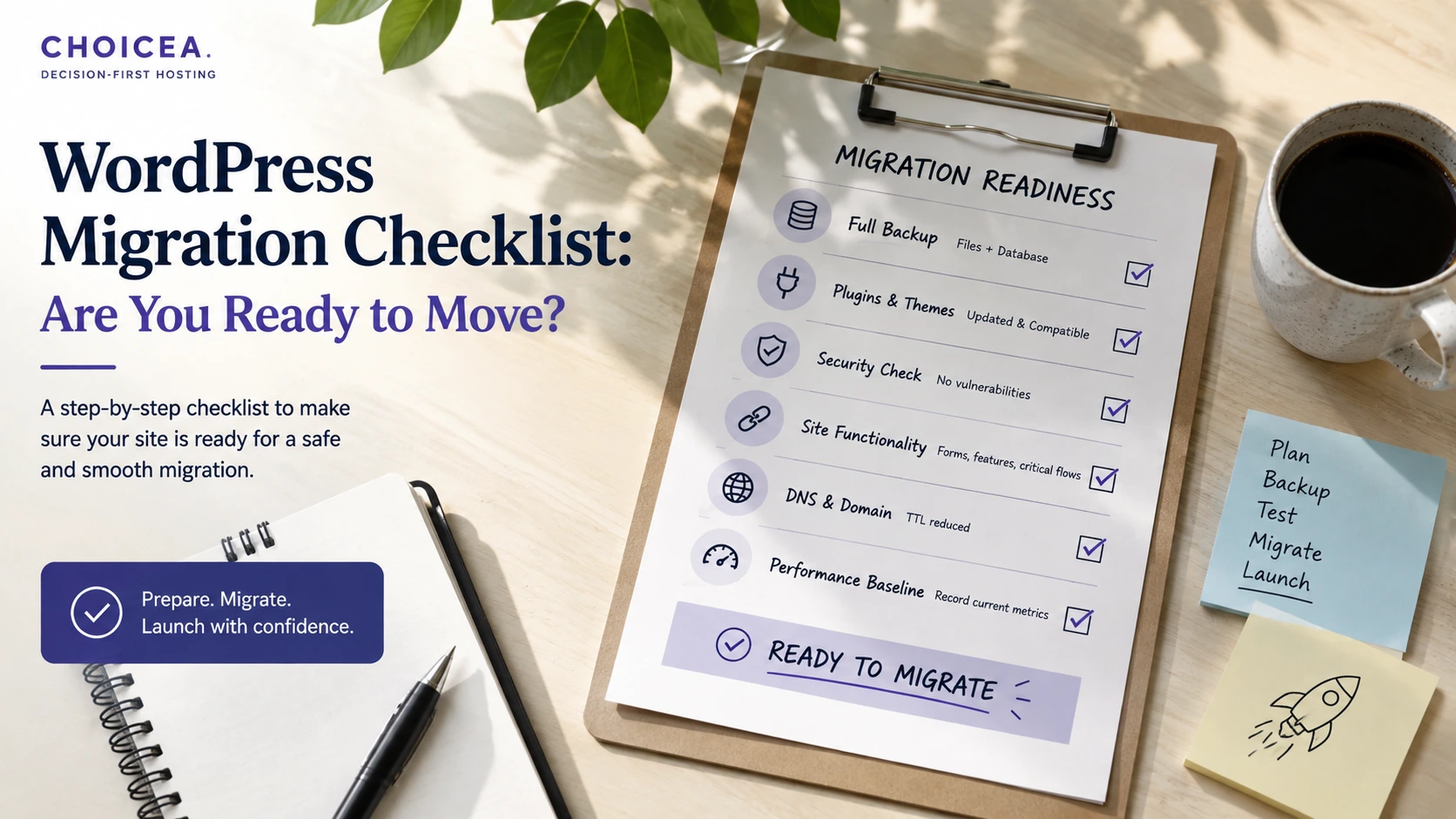
This is a working checklist, not a narrative explainer — if you want to understand why each of these steps matters before you start checking boxes, read WordPress Migration: What Actually Happens When You Switch Hosts first. This page assumes you've already decided to migrate and walks through executing it safely.
How This Differs From "What Actually Happens When You Switch Hosts"
Two different jobs, two different pages: the migration explainer covers what happens mechanically and helps you decide whether migrating is the right call in the first place. This checklist is for once you've made that call — it's the execute/prepare/verify sequence, not the reasoning behind it. If you haven't worked through the cost-benefit question yet, that's covered there, not here.
Before You Touch Anything: The Decision Check
Two things worth confirming before you start the technical checklist below, both of which we checked directly against the current top-ranking migration checklists (Krystal Hosting's and Cloudways' own guides, both fetched 2026-08-22) and found consistently missing from them:
- You've confirmed the actual problem migrating will fix. If the driver is "my site is slow," rule out a plugin, theme, or unoptimized-image problem first — those follow you to a new host unchanged.
- You have a specific rollback trigger decided in advance — not "if something breaks," but a concrete condition ("if X is broken and can't be fixed within Y hours, revert DNS") decided now, not mid-migration under pressure. See item 15 below.
1. Inventory What You're Actually Moving
- List every plugin and theme currently active — note which are premium/licensed, since some licenses are tied to a specific domain or server IP and need re-activation after the move
- Note any custom code outside WordPress itself: server-level redirects, cron jobs,
.htaccessrules, custom PHP configuration - Confirm your current PHP version and any specific server modules your site depends on
- Check whether any third-party integrations (payment processors, CRMs, marketing tools) are allowlisted by IP address on the old server — these need updating for the new one
2. Backups (Independent of Whatever Migration Tool You Use)
- Take a full backup of files and database, stored somewhere you control directly — not solely inside whatever migration plugin or service you're about to use
- Verify the backup is actually restorable, not just present (a backup you haven't tested is not confirmed to work)
- Keep this backup until the new site has been live and verified for at least a few days
3. DNS and Domain Considerations
- Note your current DNS TTL (time-to-live) — lowering it a day or two ahead of cut-over shortens how long some visitors see the old site after you switch
- Confirm exactly which DNS records need to change (A record, CNAME, or both, depending on how the new host wants traffic pointed)
- Document your current DNS settings in full before changing anything, so you can revert precisely if needed
4. Email — the Most Commonly Missed Step
- Check whether your email is hosted on the same server as your website or through a separate provider — moving web hosts doesn't require moving email, but the two are often confused
- If email does live on the old host, migrate it to a separate, dedicated email provider before changing DNS — some hosts (Cloudways, for one, confirmed directly from its own current documentation) don't offer email hosting at all, so this can't be assumed to carry over automatically
- Confirm MX records specifically, separately from the A/CNAME records handling your website traffic — updating one without the other is a common way inbound email silently breaks during a migration
5. Set Up a Staging Environment
- Get the migrated site running on a temporary URL (staging subdomain, raw IP, or local
hostsfile override) before any DNS change - Do all testing below against this staging version — not the live old site, and not by pointing DNS early "just to check"
6. Database and Content Synchronization
- If your current site keeps taking real traffic/orders/comments during migration prep, plan for a final content sync immediately before cut-over, so nothing created between your initial copy and the actual switch gets lost
- Verify the copied database's site URL settings match the new environment (a common source of broken links and admin-login redirect loops after migration)
7. SSL/HTTPS
- Confirm the new host has a valid SSL certificate ready before DNS switches — a gap here shows visitors a certificate warning, and it's one of the most commonly cited failure points in real migrations
- Test that HTTPS is enforced (no mixed-content warnings) on the staging version before cut-over, not after
8. Redirects and Permalinks
- Confirm your permalink structure carried over correctly — this is a common breakage point when the underlying server configuration differs between old and new hosts
- If any URLs are changing as part of this move (not just the server, but the URL structure itself), set up 301 redirects from old URLs to new ones before cut-over, not after search engines and visitors start hitting 404s
- Crawl the staging site for broken internal links before going live
9. Caching and CDN Considerations
- If you're using a CDN, confirm whether it needs repointing to the new server's IP, or whether the new host provides its own CDN layer that changes this setup entirely
- Clear any existing cache (both server-side and CDN-level) after cut-over — a stale cache can serve the OLD site's content even after DNS has fully propagated to the new one, which reads as a confusing "the migration didn't work" symptom that's actually just a caching issue
10. Analytics and Tracking Continuity
- Confirm your analytics tracking code (Google Analytics, Search Console verification, any ad-platform pixels) is present and firing correctly on the staging version before cut-over
- Resubmit your sitemap to Search Console after the move goes live, so search engines re-crawl under the (hopefully unchanged) URL structure promptly
11. Forms, Checkout, and Login Testing
- Submit every form on the staging site (contact forms, newsletter signups, and especially checkout if this is an ecommerce site) and confirm submissions actually arrive where they're supposed to
- Test admin login and any user-account login flows specifically — these are disproportionately likely to break from the site-URL mismatch issue noted in item 6
12. Performance Checks Before Cut-Over
- Compare basic load-time metrics between the old site and the staging version — a migration that quietly makes performance worse is still a real problem, even though nothing is technically "broken"
- Confirm image optimization, caching plugins, and any performance tooling from the old site are actually configured (not just installed) on the new one
13. The Cut-Over
- Update DNS records to point to the new host
- Expect propagation to take anywhere from a few minutes up to about 48 hours in slower cases — some visitors may briefly still reach the old server during this window
- Do not decommission the old host/account yet — see item 15
14. Post-Migration Monitoring
- Recheck everything from items 7-11 (SSL, redirects, forms, login, analytics) again once DNS has actually propagated — a staging-environment pass doesn't guarantee identical behavior once real traffic and full propagation are involved
- Monitor for a few days for anything that only surfaces under real traffic patterns (cache-related glitches, intermittent email delivery issues, edge-case broken links)
15. Rollback Preparation
This is the step most consistently missing from the migration checklists currently ranking for this topic (confirmed directly, 2026-08-22 — see Sources) — both because it's easy to skip when a migration seems to be going smoothly, and because it only matters in the scenario nobody wants to plan for.
- Keep your old host/account active and unchanged for a defined window after cut-over (a few days to a week is reasonable) — this is your actual rollback path, and it stops being available the moment you cancel or overwrite it
- Know in advance exactly what reverting DNS back to the old host would involve, so it's a fast, already-understood action if you need it — not something you're figuring out for the first time during an actual problem
- Revisit the specific rollback trigger you set in "Before You Touch Anything" above — if you hit it, act on it rather than continuing to troubleshoot indefinitely on a live, broken migration
Universal Practice vs. Provider-Specific Behavior
Everything above applies regardless of which host you're migrating to — it's the underlying mechanics of moving files, a database, and DNS. What varies by provider is how much of it is done for you. As two current, real examples (not an endorsement of either): Cloudways offers free migration for WordPress and WooCommerce sites handled by its own team, or a self-service WordPress Migrator Plugin if you'd rather run it yourself — but confirmed directly from Cloudways' own current documentation, it does not offer email hosting, which is exactly why item 4 above calls that out as commonly missed. Kinsta separately offers free migrations from any host, typically completed within a day by its own team, with you handling the DNS cut-over yourself once the copy is verified. Neither service replaces the testing, redirect, and rollback-planning steps above — a "free migration" from either provider covers the file-and-database copy, not the full checklist. See Cloudways vs DigitalOcean, Kinsta vs WP Engine, or our Kinsta review if you're still deciding on a destination host rather than executing a move you've already committed to. If you've already settled on Cloudways or Kinsta specifically, see Migrating to Cloudways or Kinsta for what's different about the migration path itself depending on which one you pick.
FAQ
Do I need to do every single step on this list?
Most of them, yes — but the exact steps that matter most depend on your site. A brochure site with no forms and no ecommerce can skip most of item 11; a store running real transactions cannot skip any of it. Email (item 4) only applies if you're currently hosting email on the same server you're leaving.
How long does a WordPress migration actually take?
The file-and-database copy itself is often fast (both Cloudways and Kinsta advertise same-day migrations for straightforward sites) — but DNS propagation afterward can take up to about 48 hours in slower cases, and the testing steps above should happen before you cut over, not compressed into the same day.
What if I don't have the technical background to do this myself?
Several hosts (Cloudways and Kinsta among them, per the Sources below) offer managed migration services where their own team handles the file-and-database copy — but the decision-check, testing, and rollback-planning steps in this checklist are still worth doing yourself regardless of who executes the technical copy, since they're about your specific site's risk, not generic technical execution.
Sources
- krystal.io/blog/post/wordpress-migration-checklist — fetched directly 2026-08-22; confirmed to cover backup/DNS/testing steps but omit cost-benefit reasoning, comparative hosting evaluation, and a rollback procedure
- cloudways.com/blog/wordpress-migration-checklist — fetched directly 2026-08-22; confirmed to cover the same technical steps while promoting Cloudways specifically as the destination, and to also omit cost-benefit reasoning, comparative evaluation, and rollback guidance
- cloudways.com/en/free-website-migration-service.php, support.cloudways.com — Cloudways' current migration service and plugin description, checked 2026-08-22 (confirms no email-hosting offering, cited in item 4)
- kinsta.com/wordpress-hosting/migration/, kinsta.com/blog/migrate-to-kinsta/ — Kinsta's current migration process description, checked 2026-08-22
Checked at: 2026-08-22. Migration tooling and provider processes change — confirm current steps with your specific destination host before migrating.