Cloudways Setup: The Decisions That Actually Matter
Most Cloudways setup guides are click-by-click tutorials. The clicks aren't the hard part — the decisions are: which infrastructure provider, which plan size, and whether you're actually done when the installer says you are. Here's the setup guide built around those decisions.
This page may contain affiliate links. We may earn a commission if you make a purchase, at no extra cost to you.
The 30-second answer
CHOICEA'S PICK
The mechanical steps of setting up Cloudways (sign up, pick a server, launch an app) are genuinely easy and well-documented by Cloudways itself. What's missing from most guides is the decision-support around it — which infrastructure provider to pick and why, how to size a plan without guessing, and a real verification checklist for confirming your new server is actually configured the way you assumed, not just installed.
BEST FOR
- You've already decided Cloudways is the right fit and want to set it up with real decision-support, not just a click sequence.
- You want to choose an infrastructure provider and plan size deliberately, not by guessing or picking the first option shown.
- You want a genuine post-setup verification step, not just a "you're done!" screen.
ALTERNATIVE / if your situation is different
- You haven't yet decided whether Cloudways itself is the right category — start with [Who Should (and Shouldn't) Use Cloudways](/articles/should-you-use-cloudways/) instead.
- You're moving an existing site rather than starting fresh — see [Migrating to Cloudways or Kinsta](/articles/migrating-to-cloudways-or-kinsta/) for that specific path.
- You want exact, click-by-click screenshots of every setup screen — Cloudways' own Help Center documentation covers that mechanical layer directly; this page is deliberately about the decisions around those clicks, not a replacement for the clicks themselves.
What to check next: Start setting up a Cloudways server
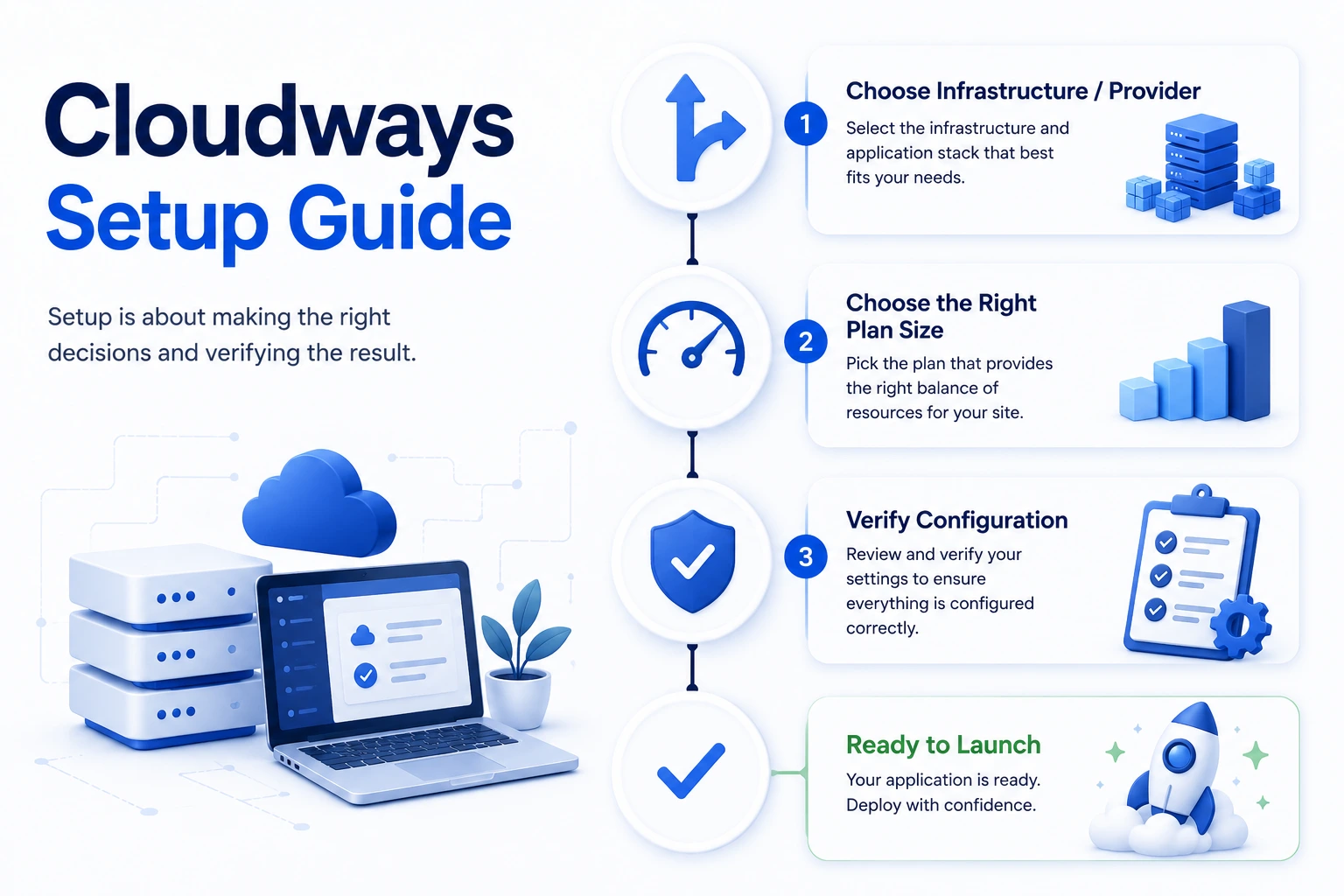
Search "Cloudways setup" and you'll find a lot of guides that walk through the same five clicks: sign up, pick a server, name your app, wait for provisioning, done. Those clicks are real, and Cloudways' own onboarding is genuinely straightforward — this page isn't going to re-walk them. What's missing from nearly every setup guide we found is the part that actually requires a decision: which infrastructure provider to run on, how to size the server without guessing, and how to confirm afterward that what you set up is actually configured the way you assumed. This page is built around those three decisions, not the clicks between them.
Before You Start
This page assumes you've already decided Cloudways itself is the right category of host for you. If you haven't worked through that yet, see Who Should (and Shouldn't) Use Cloudways first — setup is the wrong stage to be re-litigating whether a managed cloud platform is the right model at all.
One more thing worth confirming before you start: are you launching a new site, or moving an existing one? Everything below is written for a fresh start. If you're migrating an existing site to Cloudways, the setup mechanics are similar but the sequence and stakes are different — see Migrating to Cloudways or Kinsta for that specific path instead.
Choosing an Infrastructure Provider
Cloudways doesn't run its own data centers — at server creation, you choose which underlying infrastructure provider actually hosts your server: DigitalOcean, Vultr, Linode, AWS, or Google Compute Engine. This choice happens once, at setup, and changing it later generally means provisioning a new server rather than flipping a setting.
What we have real, verified pricing for: Cloudways' DigitalOcean-based ("Flexible") tiers, from a 1GB/$11-per-month entry server up through much larger sizes — see Cloudways Pricing Explained for the full, dated table. This is also the most-documented option across Cloudways' own materials and third-party comparisons, which makes it a reasonable default if you don't have a specific reason to choose otherwise.
What we don't have independently verified: whether Vultr, Linode, AWS, or GCE-backed Cloudways servers carry different pricing, region availability, or performance characteristics at the same nominal specs. We're not going to invent a comparison table for that — if you have a specific reason to prefer one of those four (a particular region your users are concentrated in, an existing account with that provider, a compliance requirement), confirm current pricing and region availability directly in the Cloudways server-launch screen before committing, rather than assuming parity with the DigitalOcean numbers above.
The honest default: unless you have a specific reason to choose otherwise, DigitalOcean-backed is the best-documented option both on Cloudways' own site and in independent research, which matters more at setup time than it might seem — you want to be able to find real answers later if something needs troubleshooting.
Choosing a Plan Size
Don't guess this from the price alone. The real inputs are: expected traffic, storage needs (media-heavy sites need more headroom than a text-heavy blog), and whether you're running one site or planning for several on the same server. See the full pricing ladder and use-case breakdown in Cloudways Pricing Explained rather than picking the cheapest tier by default — undersizing a server is a common, avoidable setup mistake, and resizing later is possible but not instant.
If you're choosing between Cloudways' two pricing models specifically — the classic per-server "Flexible" tier versus the newer WordPress-specific "Autonomous" line — that decision is covered in depth on the pricing page linked above; don't make it here without reading that comparison first.
Start setting up a Cloudways server
What "Done" Actually Looks Like
This is the section most setup guides skip entirely: a server that's technically provisioned isn't the same as a server that's actually configured the way you assumed. Before you consider setup finished, confirm each of these directly — don't assume:
- SSL is actually enforced, not just installed. A certificate being present and HTTPS being enforced site-wide (no mixed-content warnings, no accessible HTTP version) are two different things. Check both.
- Your staging environment actually works. If you plan to test changes before pushing them live, clone your app to staging once during setup and confirm the clone loads correctly — don't discover this doesn't work the first time you actually need it.
- A backup schedule is actually configured, not just available. Cloudways makes backups available on every plan, but confirm a schedule is active and check what retention window applies to your specific plan, rather than assuming a sensible default is already running.
- Support tier matches what you're expecting. 24/7 chat, email, and ticketing support is included on every Cloudways plan by default — but faster response-time commitments are a separate paid "Advance Support" add-on, priced at $100/month standard (confirmed directly on Cloudways' current pricing page, checked 2026-08-25). If you're assuming faster response times than the default tier provides, confirm this before you need it, not during an incident.
- You know what a serious problem would actually cost you to fix, in the specific sense that no setup fee is stated anywhere on Cloudways' current pricing pages we checked — not confirmed as free, simply not itemized either way. Worth knowing plainly rather than assuming.
Who Should Stop and Reconsider
A few setup-stage signals that you may be provisioning the wrong thing, not just the wrong size:
- You're setting up a server for a WordPress-only site and expect to never run anything else on this infrastructure. Cloudways' flexibility (multiple stacks on one platform) is a real feature if you need it and unused capability if you don't — see Cloudways vs Kinsta before finishing setup if this describes you.
- You're setting this up specifically because a guide told you it's "the easiest option," without having compared the real cost against provisioning the underlying infrastructure directly. See Cloudways vs DigitalOcean or Cloudways vs Vultr for the actual dollar gap before you commit a recurring monthly cost to convenience you haven't priced out.
- You're not sure this is the right hosting category at all. That's a sign to pause and go back to Who Should (and Shouldn't) Use Cloudways rather than finishing setup on autopilot.
Who This Is For
- You've already decided Cloudways is the right fit and want to set it up with real decision-support, not just a click sequence.
- You want to choose an infrastructure provider and plan size deliberately, not by guessing or picking the first option shown.
- You want a genuine post-setup verification step, not just a "you're done!" screen.
Who Should Skip It
- You haven't yet decided whether Cloudways itself is the right category — start with Who Should (and Shouldn't) Use Cloudways instead.
- You're moving an existing site rather than starting fresh — see Migrating to Cloudways or Kinsta for that specific path.
- You want exact, click-by-click screenshots of every setup screen — Cloudways' own Help Center documentation covers that mechanical layer directly; this page is deliberately about the decisions around those clicks, not a replacement for the clicks themselves.
Alternatives
If working through the provider/plan decisions above leaves you unsure Cloudways is the right platform at all, see Cloudways Alternatives for the real alternative categories — going fully raw with a provider like DigitalOcean or Vultr directly, going fully managed with a WordPress-only host like Kinsta, or using a developer server-management panel that sits between the two. If your workload is WordPress-only specifically, Cloudways vs Rocket.net covers a narrower, WordPress-focused specialist worth comparing against the general-purpose setup this guide walks through.
If this option fits you
Start setting up a Cloudways serverPR / This link goes to our partner's official site (affiliate link). We may earn a commission if you make a purchase, at no extra cost to you. Pricing and promotions may change — please check the official site for current terms.
FAQ
Is Cloudways hard to set up?
The mechanical steps are genuinely straightforward — sign up, choose a server, launch an app. The part worth slowing down for isn't the clicks, it's the provider and plan-size decisions before them, and the verification step after.
Which infrastructure provider should I choose on Cloudways?
DigitalOcean-backed is the best-documented option in both Cloudways' own materials and independent research, and it's what CHOICEA has real, verified pricing for. Vultr, Linode, AWS, and GCE are all available, but confirm current pricing and region availability directly for your specific case rather than assuming they match DigitalOcean's numbers.
Is there a setup fee?
Not stated on Cloudways' current pricing pages either way as of this check — not confirmed as free, simply not itemized. See our hidden costs breakdown for everything that is itemized.
Do I need Advance Support?
Not by default — every plan includes 24/7 chat, email, and ticketing support. Advance Support is a $100/month add-on for faster response-time commitments specifically, not a requirement to get support at all.
Sources
- Cloudways' own current pricing and support-tier pages (cloudways.com/en/pricing.php, cloudways.com/en/managed-digital-ocean-hosting.php) — fetched directly, checked 2026-08-25
- Live SERP research into "cloudways setup" / "cloudways wordpress setup" competitor content (wpcrafter.com, cloudwaysguide.com, devopscube.com), checked 2026-08-25 — used to confirm current guides in this space are mechanical/step-by-step and do not address provider trade-offs, post-setup verification, or non-fit cases, which this page addresses instead
- CHOICEA's own Cloudways pricing breakdown and decision framework (linked above) — referenced here rather than re-derived
Checked at: 2026-08-25. Cloudways' setup flow, included features, and pricing change — confirm current terms directly before committing.